Arcana user guide
Follow the steps to make, share and order your deck.
Ask the guide
Ask a question to find instructions and screenshots from this guide.
Start your Arcana deck
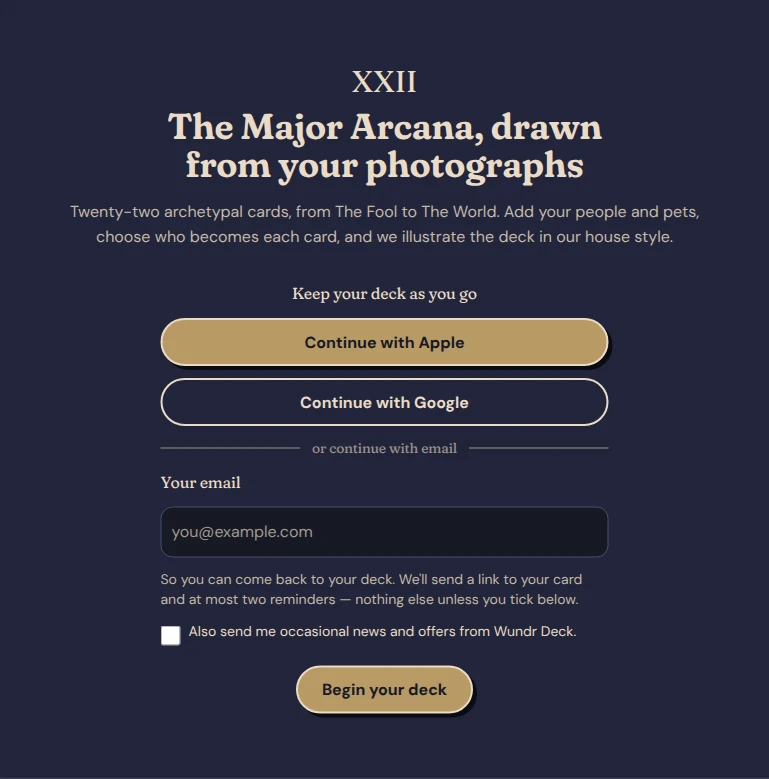
- Open Create to start a personalised deck of the 22 Major Arcana. Sign in or enter your email, then add the names of your people and pets on Your people. Use that same email to find your deck again.
- Making it for someone else? Tick This is a gift at checkout to add their name and a message.
Choose who appears on each card
- Select See suggested cards, then tap any card to choose who appears on it.
- Use The Lovers when you want two people on one card. After checking the assignments, select Use these cards and add photos.
Add photos for your cards
- On Photos, check each person’s assigned cards. Confirm permission and answer the under-18 question, then add a clear photo for a person or choose a group photo and tag the faces you want to use.
- To use Google Photos, select Or import from Google Photos and connect your account, then select Pick from Google Photos to choose your images.
- For different looks, add more photos. Open Manage photos beside a name to choose a photo for a specific card before your first illustration.
Choose and review your first card
- Choose Finishing touches to add an optional story, or go straight to Choose a card to preview. Pick any card with photos for everyone on it.
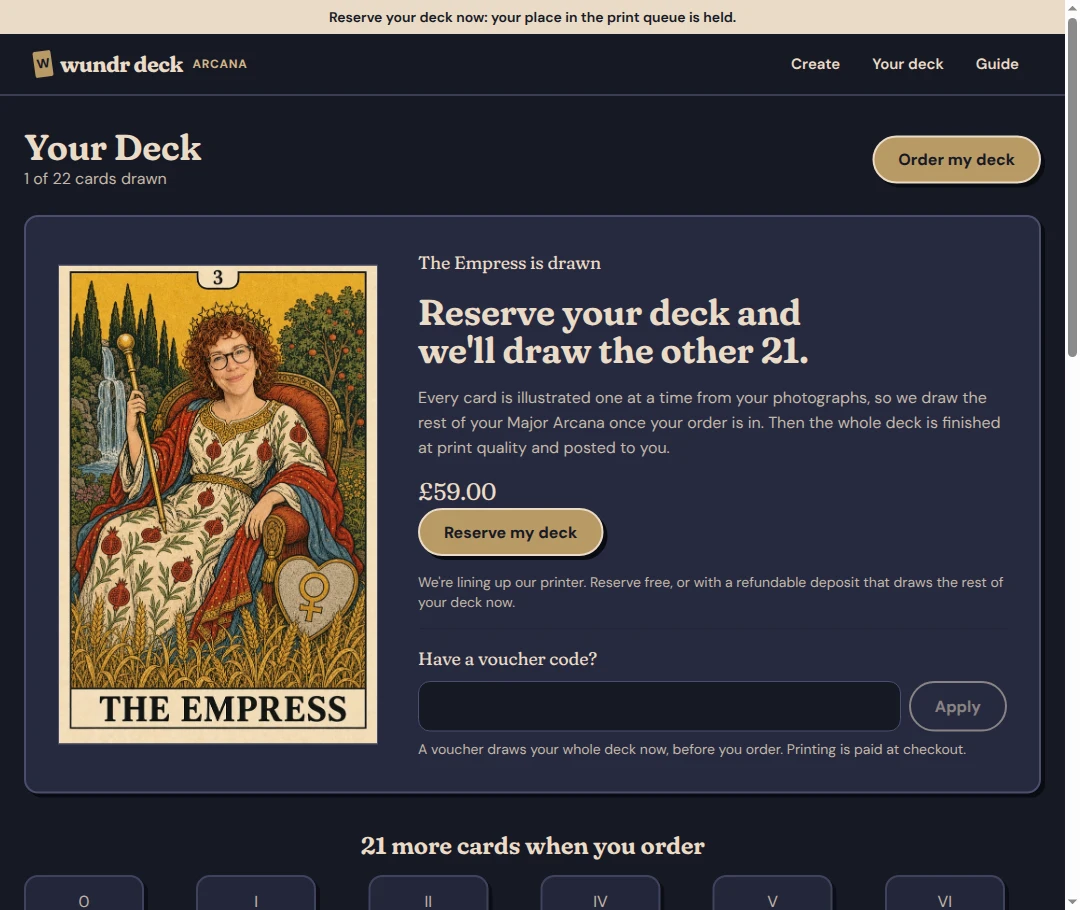
- When it’s drawn, Your deck opens automatically. Tap the illustration to see it up close, or follow Add photos if anyone still needs one before checkout.
Order or reserve your deck
- On Your deck, select Order my deck or Reserve my deck, whichever is shown. Follow the form to confirm your details. Only the deck owner can order or reserve.
- If you have a full-deck voucher, enter it in Your deck to see the cards drawn before ordering. After signing in, go to Account to find your orders.
Find your deck again
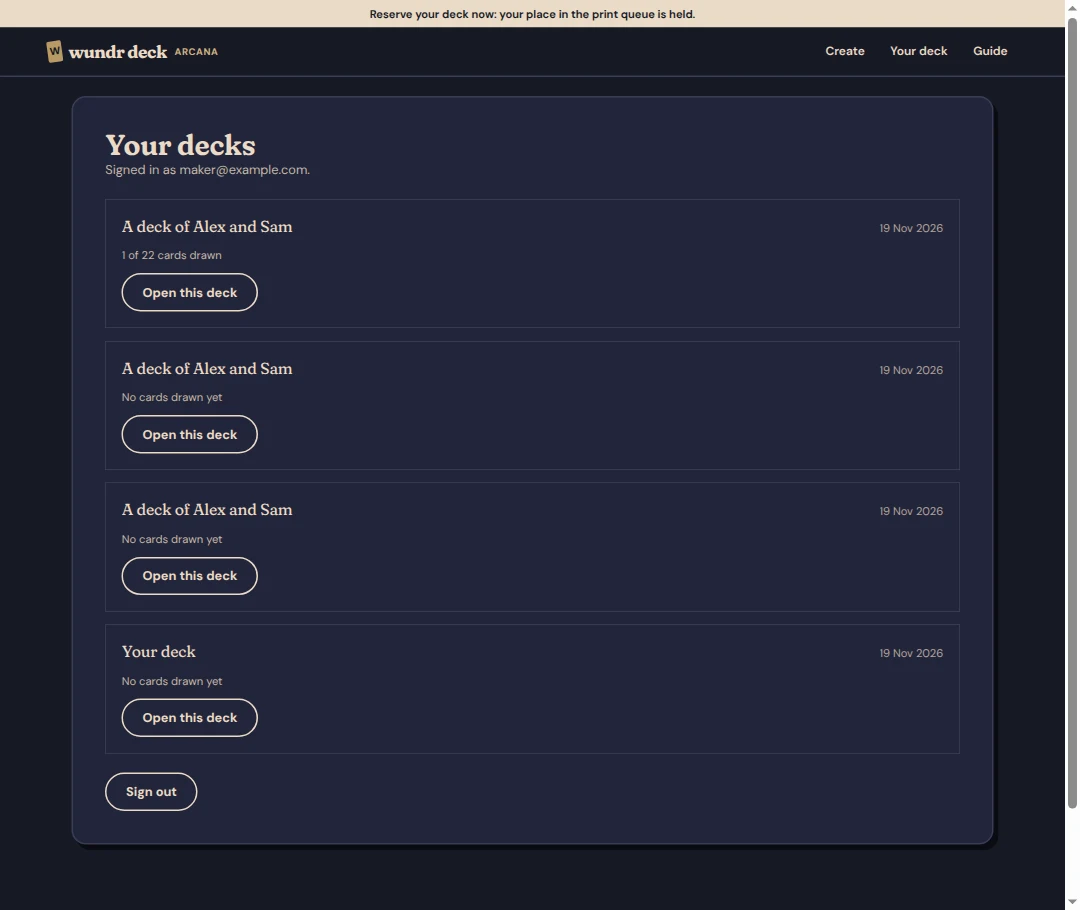
- Sign in with the same email you used to start. In Account, open your deck to continue, or check your order progress.
- If you started with email, you can also open the link sent to you about your deck. Check your spam folder if you’re waiting for a sign-in email.
Make it together
- Sign in as the deck owner and find Make it together on Photos in Create or on Your deck. Create a link and send it to your guest. It works for seven days.
- Your guest signs in and asks to join. Return to Make it together and select Let them in beside their request. Co-makers can add people and photos and choose cards. The owner places orders, pays and can delete the deck.

Ask the Wundr team for help
- Sign in as the deck owner. On Your deck, select Request support with my deck, tell the team what you need help with and send the request.
- The request lets the team see and edit the deck, including its photos, for the time shown. Return to the same panel to stop access whenever you want.
